Skip to content
4.7 - 55 reviews

How to do voice recording

Practical tips for making the voice recording.

Voice recording guide

Get ready for your voice recording

Your voice recording is part of a professional assessment. Take the time to do it carefully. A good recording is important for the analysis.

This guide explains how to prepare, check your device settings and make your recording.


01 / Before you start

Find a quiet place to record

Choose a quiet space

Make sure there is no music, background noise or other people talking. Close the windows.

Use your device directly

Do not use earphones or a headset. Speak directly into your device’s microphone.

Keep your screen on

Make sure your battery has enough charge and prevent your device from going to sleep during the recording.

02 / Set up your device

Allow microphone access

Expand the instructions for your device below.

The models and versions listed are taken from the supplied instructions. Menu names may differ on your device.

Apple iPhone

iOS 15 to 17 · iPhone 8 to 15

  1. Open the Voice Your Future app using your personal link and enter your unique code.
  2. Select ‘Allow’ when asked for microphone access.If needed: Settings › Privacy › Microphone › Enable the VYF app.
  3. Temporarily set Auto-Lock to 2 minutes or more.Settings › Display & Brightness › Auto-Lock.
Samsung Galaxy

Android 11 to 14 · Galaxy S10 to S24, A52 and later models as listed in the instructions

  1. Open the app and grant microphone permission by selecting ‘Allow only while using the app’.Check under: Settings › Apps › VYF app › Permissions › Microphone.
  2. Turn off battery optimisation for the app.Settings › Battery › Allow background app activity.
  3. Set the screen timeout to 2 minutes or more.Settings › Display › Screen timeout.
Google Pixel

Pixel 5 to 8

According to the supplied instructions, follow the same steps as for Samsung:

  1. Allow the app to use your microphone while you are using the app.
  2. Check the microphone permission in the app settings.
  3. Turn off battery optimisation for the app and set the screen timeout to 2 minutes or more.
Other Android devices

Including OnePlus, Xiaomi and Motorola

  1. Enable microphone permission.Settings › Apps › Permissions.
  2. Check battery management and the screen timeout so the recording can continue uninterrupted.
  3. Temporarily turn off notifications and battery saver.
03 / During the recording

Speak naturally. Keep a steady distance.

Open the video separately · approximately 3 seconds

2 cm

From your mouth to the microphone

Hold your device flat, with its microphone 2 cm from your mouth. Keep this distance constant throughout the recording. This also lets you see what the recorder is doing.

Follow the recorder

Keep counting until the data is being sent

The recorder indicates when the data is being sent. For some people this happens around 80, for others around 120. Always follow the recorder’s signal.

Speak naturally, as if you were talking to a coach.

04 / After the recording

Your voice recording was successful

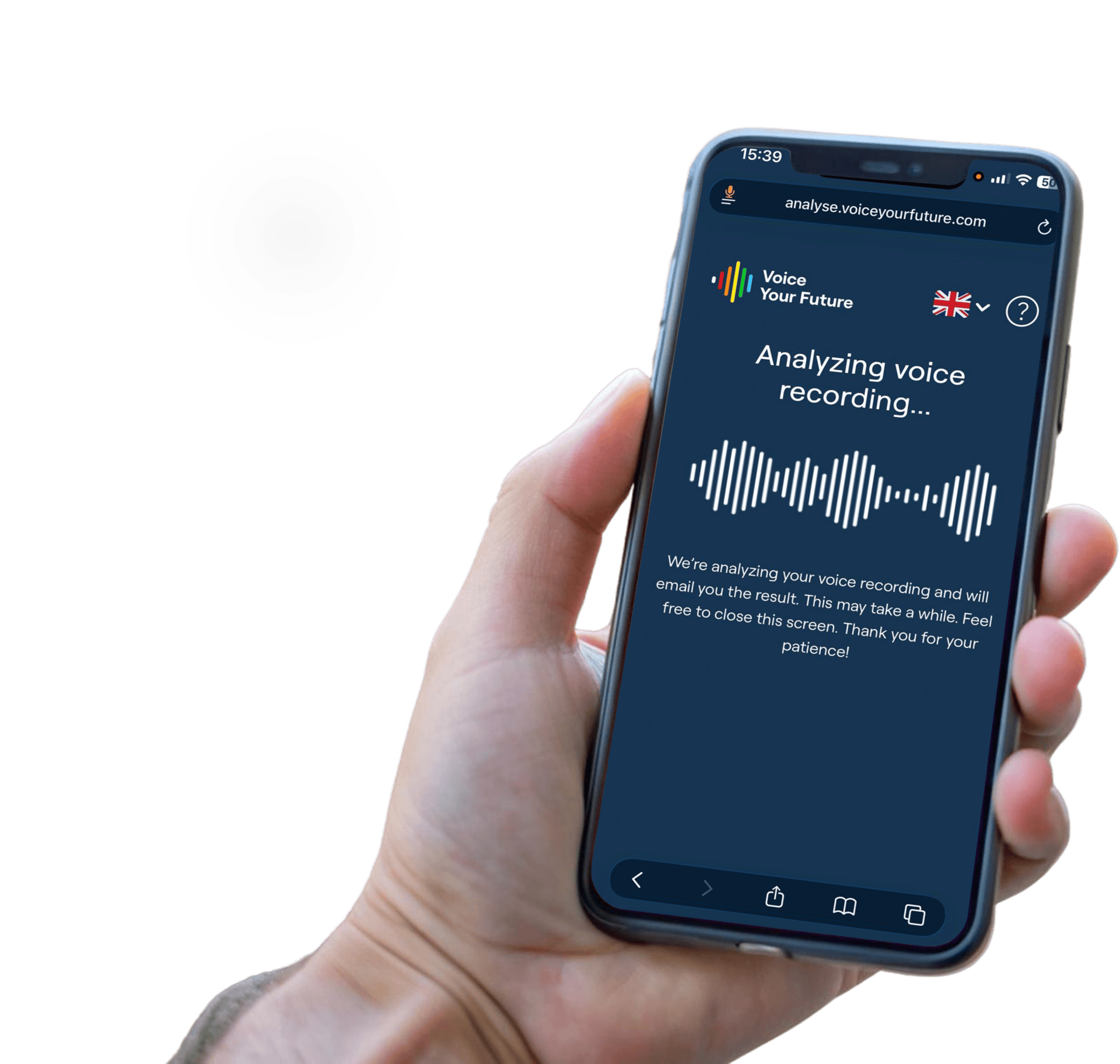
When you see ‘Analyzing voice recording…’, your recording is complete and is being analysed. You can now close this screen.
  • Voice Card: If you purchased a Voice Card, you will receive your personal profile report and login details for Voice Experience by email within 24 hours.
  • Voice Compass: If you purchased a Voice Compass, it is important to book a session with a certified VYF coach. You will receive your Voice Compass and login details for Voice Experience during this session.
Phone displaying the message: Analyzing voice recording.